
Exporting
PageTatin gives you several ways to save and share your flatplan: save it as a native .tatin file, export a .pdf to share with your team, or export a .json file for backwards compatibility.
Saving as a native file
Section titled “Saving as a native file”Use the Save as… button in the top bar to save your project as a native PageTatin file (.tatin). This is the recommended way to keep your project as a file you can archive, back up, or move between machines. PageTatin also saves your work automatically as you go; the native file is a deliberate, named copy you decide where to keep.
Exporting as PDF
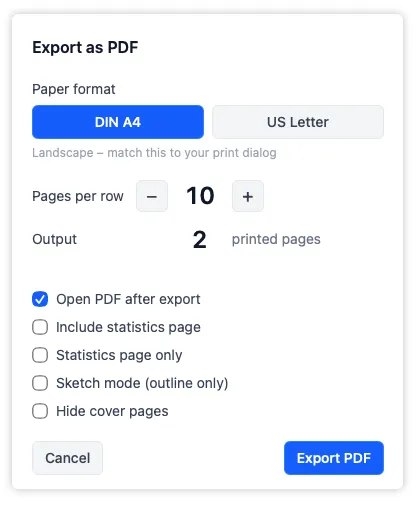
Section titled “Exporting as PDF”Click the .pdf button in the top bar. An overlay appears with these settings:
- Paper format – DIN A4 or US Letter, exported in landscape. Match this orientation in your system’s print dialog if you print the PDF directly.
- Pages per row – how many flatplan pages appear in each row of the .pdf. More pages per row gives a more compact .pdf with smaller thumbnails; fewer per row gives larger, easier-to-read thumbnails. The overlay shows the resulting number of .pdf pages as you adjust the setting.
- Include statistics page – adds the page and ad statistics as a table at the end of the .pdf. Tick Statistics page only to export just the statistics table, without the rest of the flatplan.
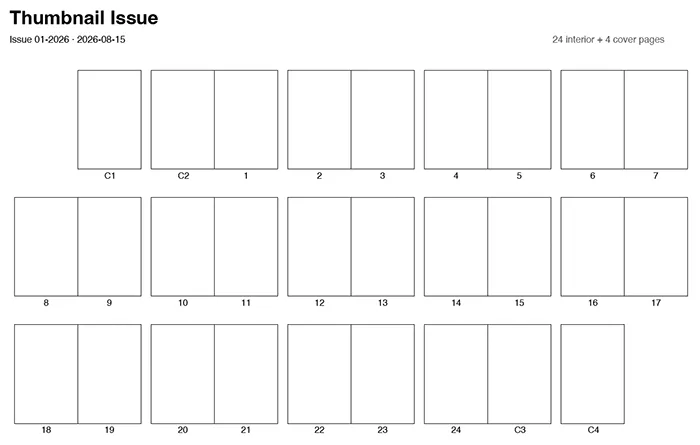
- Sketch mode (outline only) – exports blank spread outlines instead of filled-in pages, with no thumbnails, categories, or notes, so you can print the flatplan and sketch ideas on it by hand.
- Hide cover pages – leaves the four cover pages out of the export. Works with a normal export or together with Sketch Mode.
Choose a destination folder where the file should be saved. Tick Open PDF after export to have the .pdf open automatically in your default .pdf application once it’s saved.
The same .pdf export is available from the File menu in the menu bar.
Exporting as JSON
Section titled “Exporting as JSON”The .json export saves your entire project – page structure, categories, statuses, notes, editorial regions, ads, thumbnails, and settings – to a single portable file.
Use File → Export as JSON… in the menu bar. A save dialog opens – pick where you want the .json file to go. PageTatin remembers the last used folder for next time, so subsequent exports will be saved there automatically.
Use .json export to back up your work or to transfer a project to another machine. When an export is complete, it’s noted briefly in the top bar.
Opening a saved project
Section titled “Opening a saved project”Click the Open project button in the top bar and choose a saved .tatin file (or an exported .json). PageTatin loads that project, replacing the current one in view.
If the current project has unsaved changes and hasn’t been saved to a file yet, PageTatin warns you first and lets you save before it opens the other one.
Auto-save and the difference from export
Section titled “Auto-save and the difference from export”PageTatin saves your work automatically after every change – quit the app and it will be right where you left it when you reopen. Saving to a file is separate from this: Save as… creates a native .tatin file, and .json and .pdf are exports – deliberate copies you create when you want a backup, a shareable version, or to move the project somewhere else.
What’s next
Section titled “What’s next”To customise the app itself – categories, statuses, milestones, and interface options – see PageTatin Settings.